Features
Your plans at a glance
Open a named huddl to see its plans, participants, and planning work in one shared place.
On this page
Product states in this journey
These controlled fictional examples were captured from the current application.
A home for the gathering
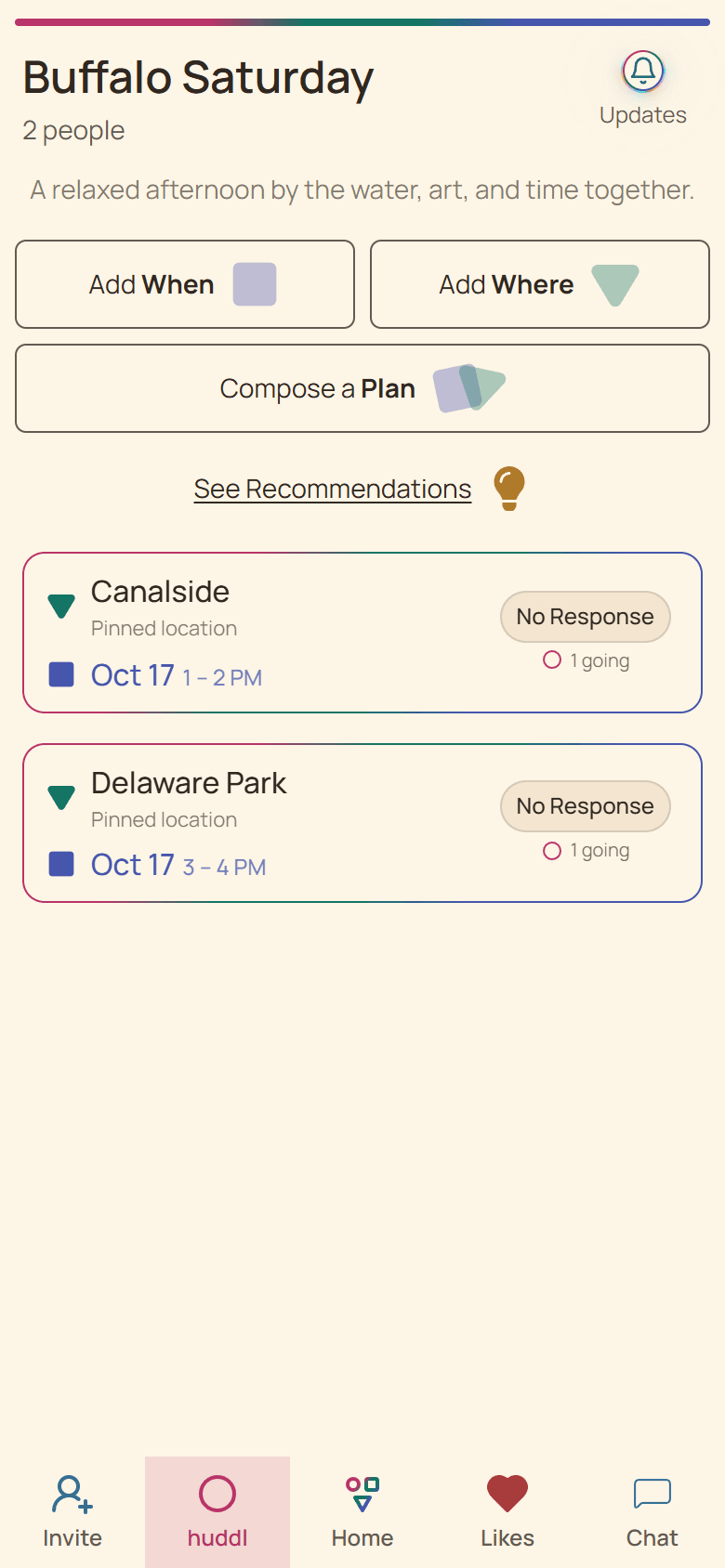
A gathering usually has more than one moving part. The picnic has a meeting point, a possible afternoon slot, a few people still deciding, and someone bringing food. The Huddl overview keeps the name and description above the plans so participants can orient themselves before answering. It is also the place to return after creating a new plan or finishing Updates.
The overview is useful for an organizer checking the headcount and for a participant who simply wants to know where to go. Its purpose is to make the current choices visible. A conversation can explain the choices, but you should not have to read the whole conversation to locate the plan.
Read a plan before responding
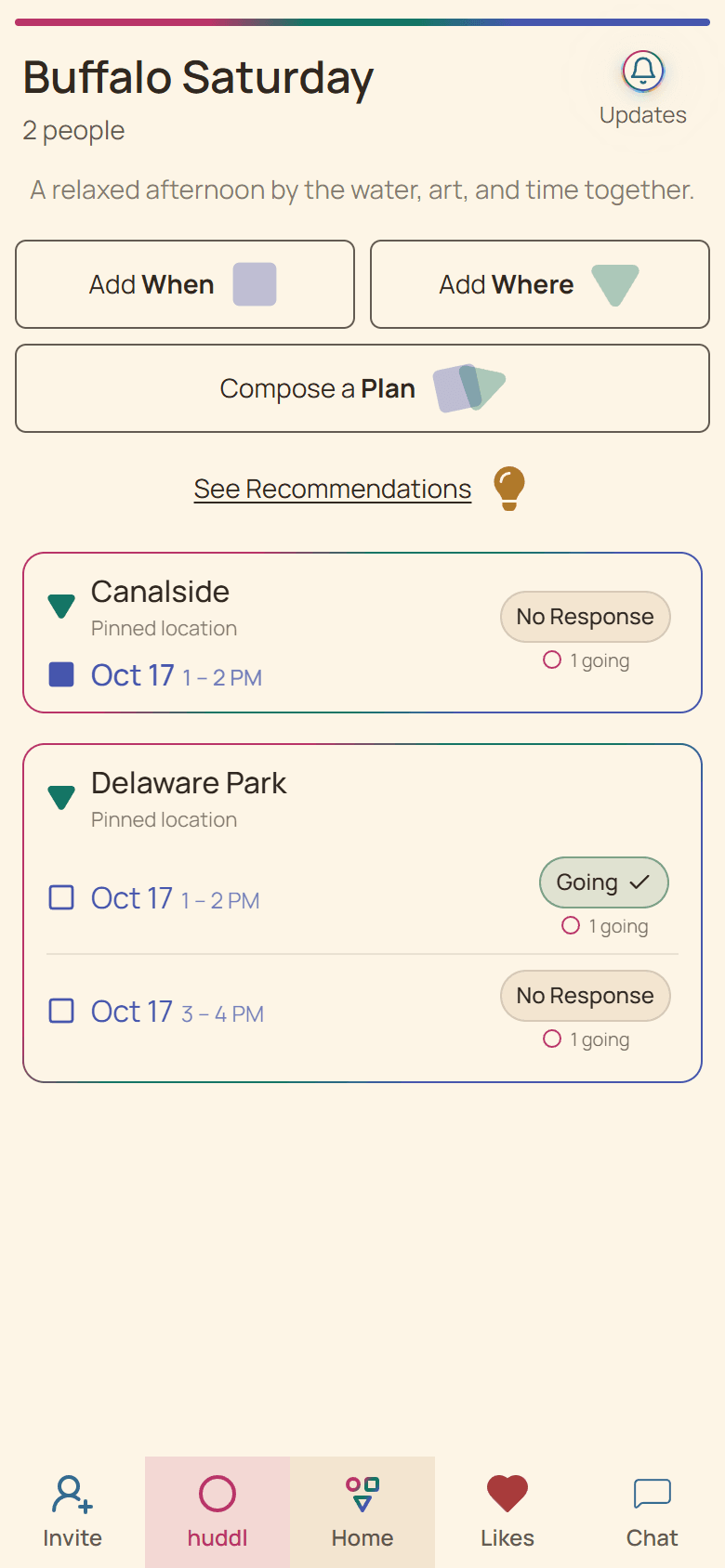
Compact plan rows show the place, time, and attendees. Expand a row to see attendance groups and your response controls. Only one plan expands at a time, helping you focus on the arrangement you are evaluating. Check the exact date and location before treating two similar-looking rows as interchangeable.
In the picnic example, an afternoon at Central Park and an evening at another picnic spot are separate plans. An RSVP to one does not commit you to the other. If the group chooses one arrangement, identify it clearly in chat and ask people to review their response there.
Move between decisions and practical work
The shared footer opens Where, When, Huddl, Tasks, and Chat. Use Where and When to inspect the options, then return to Huddl to review concrete plans. Members and invitations remain accessible through the header. This structure lets you check an address without losing the gathering you were working on.
Keep the description concise: explain the purpose, an important constraint, or an arrival detail. Active members can edit the huddl name and description, so agree on language that everyone will recognize. Save changes before navigating away and confirm the updated text appears.
Use the overview on the day
Before leaving, open the relevant plan and check the current time, place, and attendance. Review practical tasks separately so the person carrying supplies is not surprised. If a detail is ambiguous, ask a specific question in Chat and record the answer where other participants can find it. A clear overview supports coordination; it does not confirm a restaurant booking or a venue?s opening hours.