Features
Catch up without starting over
Review new planning activity and return to the shared overview with a clearer picture of what changed.
On this page
Product states in this journey
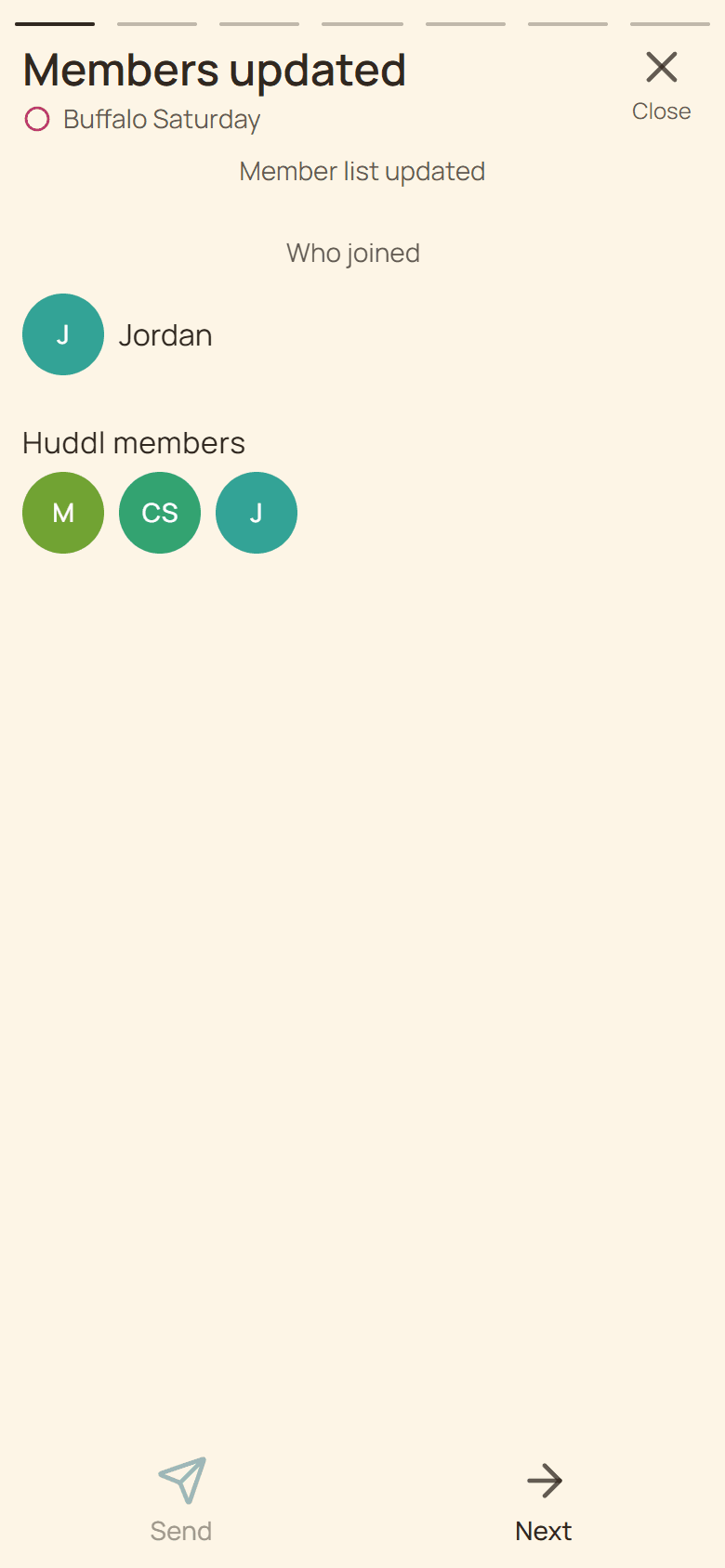
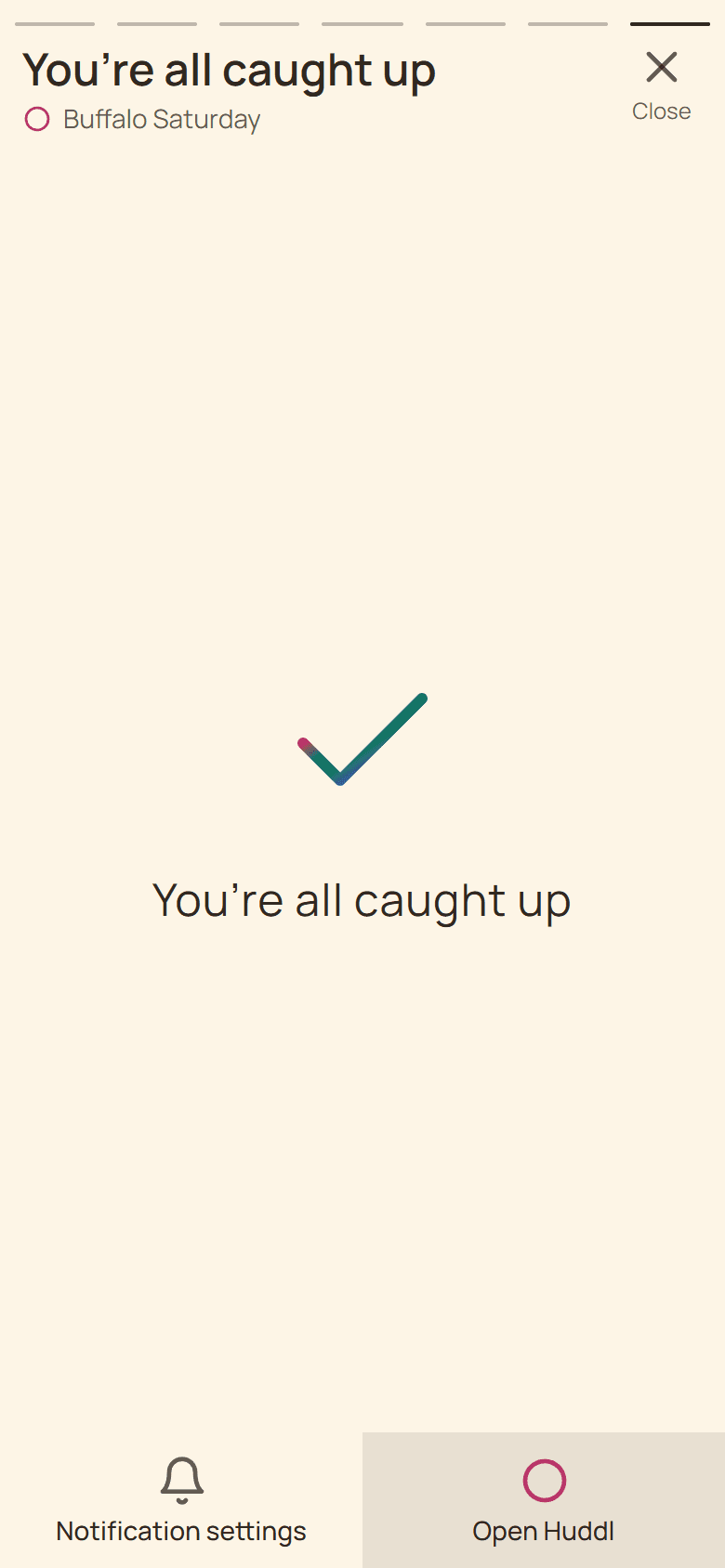
These controlled fictional examples were captured from the current application.
Enter where attention is needed
When a huddl has unread activity, the app can open its Updates flow. A new participant may see a welcome first. When there is nothing unread, the shared overview is available directly. This helps distinguish catching up on changes from inspecting the current plan.
Updates provides context for activity such as membership changes, new plans, responses, and conversation. Review the visible information before continuing, especially when a card asks you to answer rather than simply acknowledge an update.
Separate reading from responding
Seeing that someone joined is different from deciding whether you will attend. A new plan can need an RSVP, while another card may explain responses that have already arrived. Open the plan details when the arrangement is not clear.
For a picnic, you might learn that a friend joined, review the newly proposed afternoon, and then check a message about supplies. Each item has a different practical consequence. The flow helps present those changes; your group still decides what to do with them.
Return to the current overview
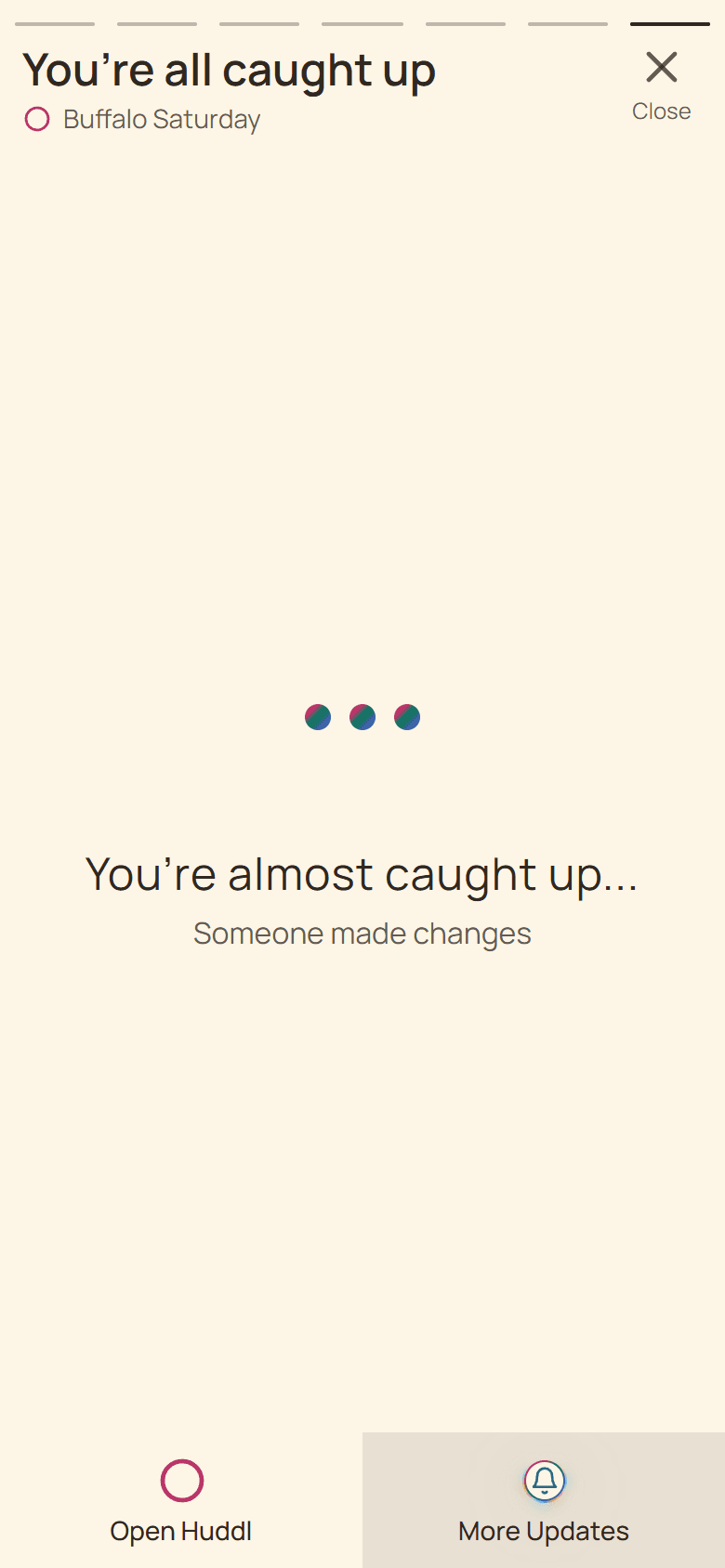
The caught-up card provides a route back to Huddl. Use the overview to inspect plans, and open the dedicated workspaces for a longer task such as reviewing places or reading Chat. You do not need to treat Updates as the only way to reach the gathering?s information.
New activity may arrive while you are reading. Follow the app?s More Updates action when offered to review additional information. A caught-up state reflects the activity available to you, not a guarantee that nobody will make another change.
Keep notifications in perspective
Notification settings control how you prefer to hear about activity, while permissions and device delivery also affect what reaches you. For an urgent venue change, ask participants to confirm they saw it. Updates is valuable for returning to context, but it should not be used as a read receipt for a message that needs immediate acknowledgment.