Product journey
Answer and change an RSVP
Respond to a concrete plan, distinguish a decline from silence, and correct the answer when circumstances change.
For Participants answering formed plans
Step 01
Open an unanswered plan
Updates groups eligible place-and-time plans that still need your response.
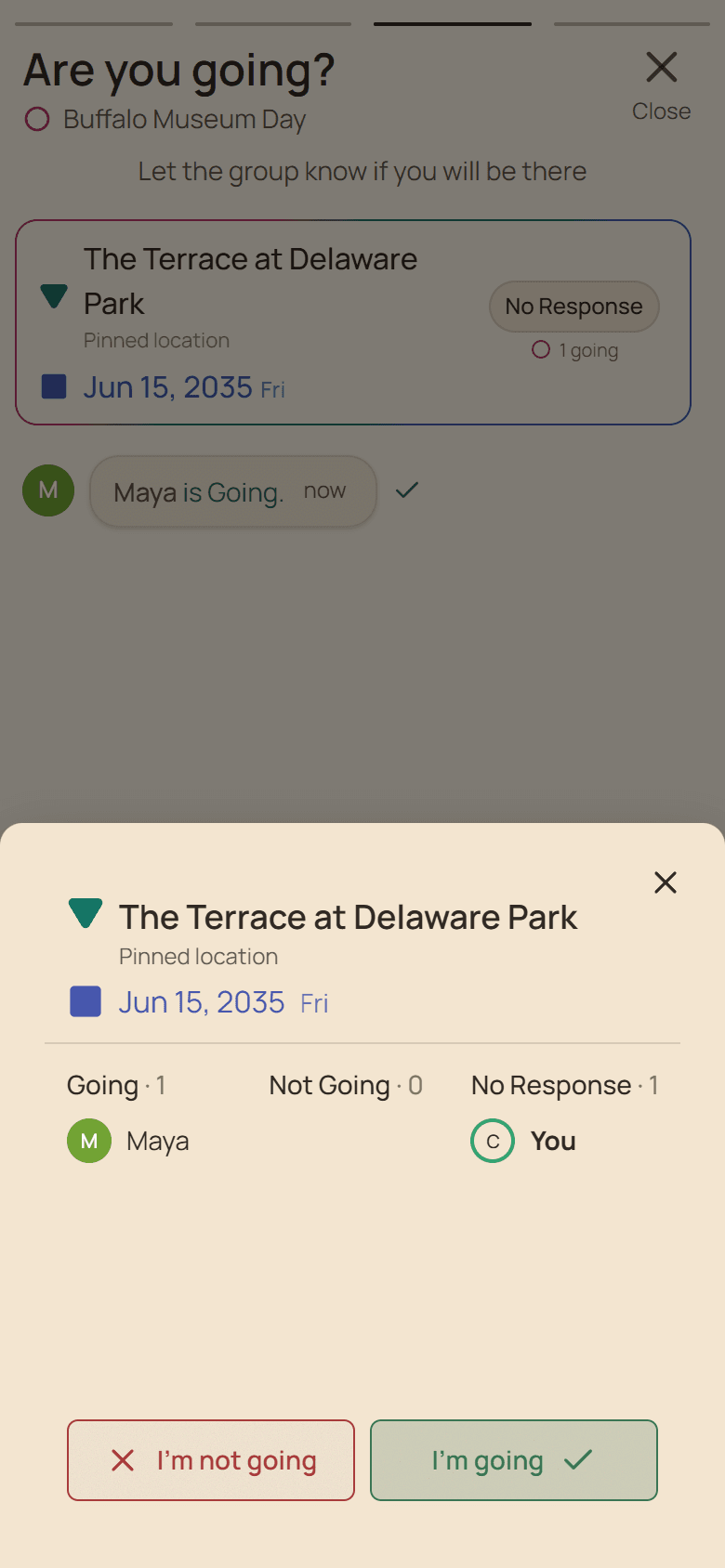
Current Huddl example: open an unanswered plan. Fictional people and planning details are shown. Step 02
Choose Going
Record that the exact arrangement works and verify your name under Going.
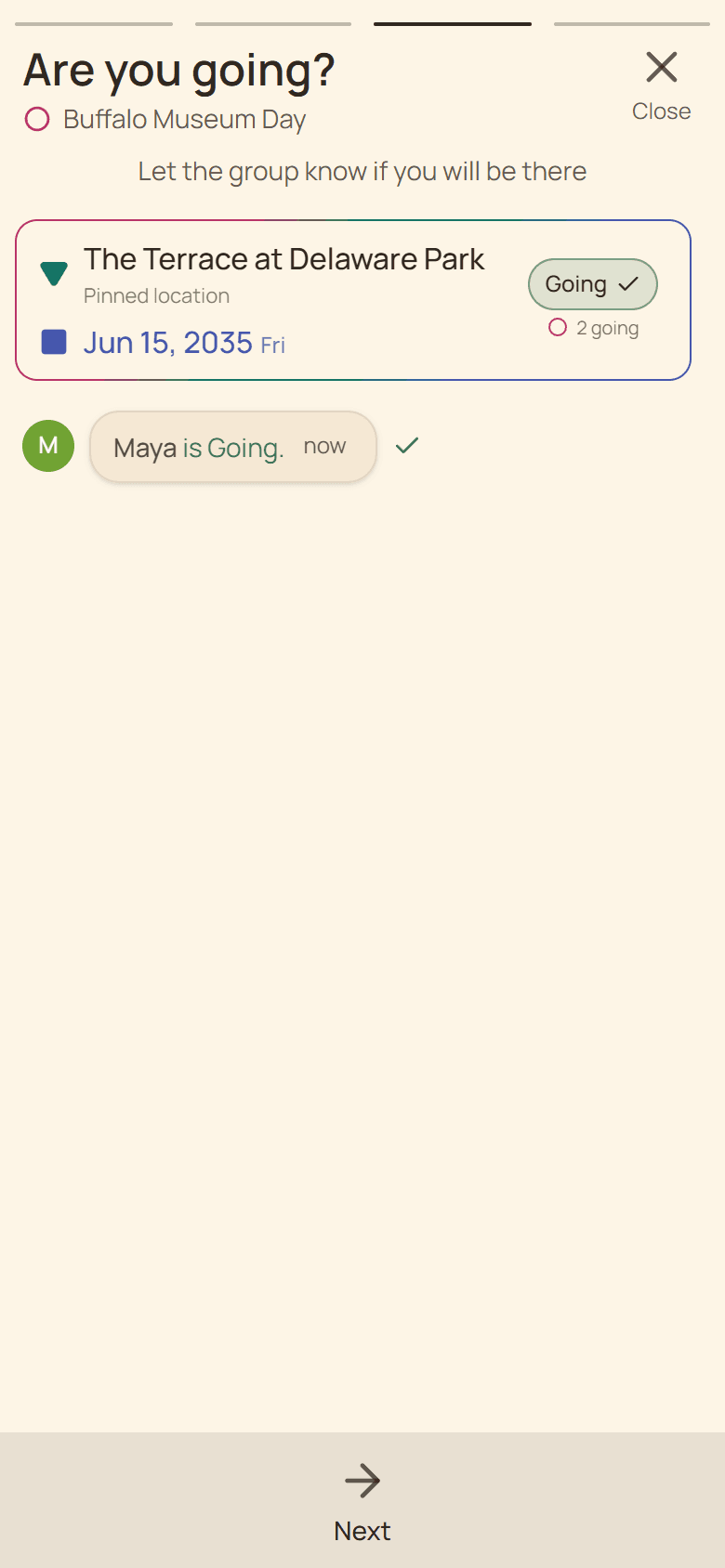
Current Huddl example: choose going. Fictional people and planning details are shown. Step 03
Use Not Going when needed
A decline remains a complete, useful answer and does not require a public explanation.
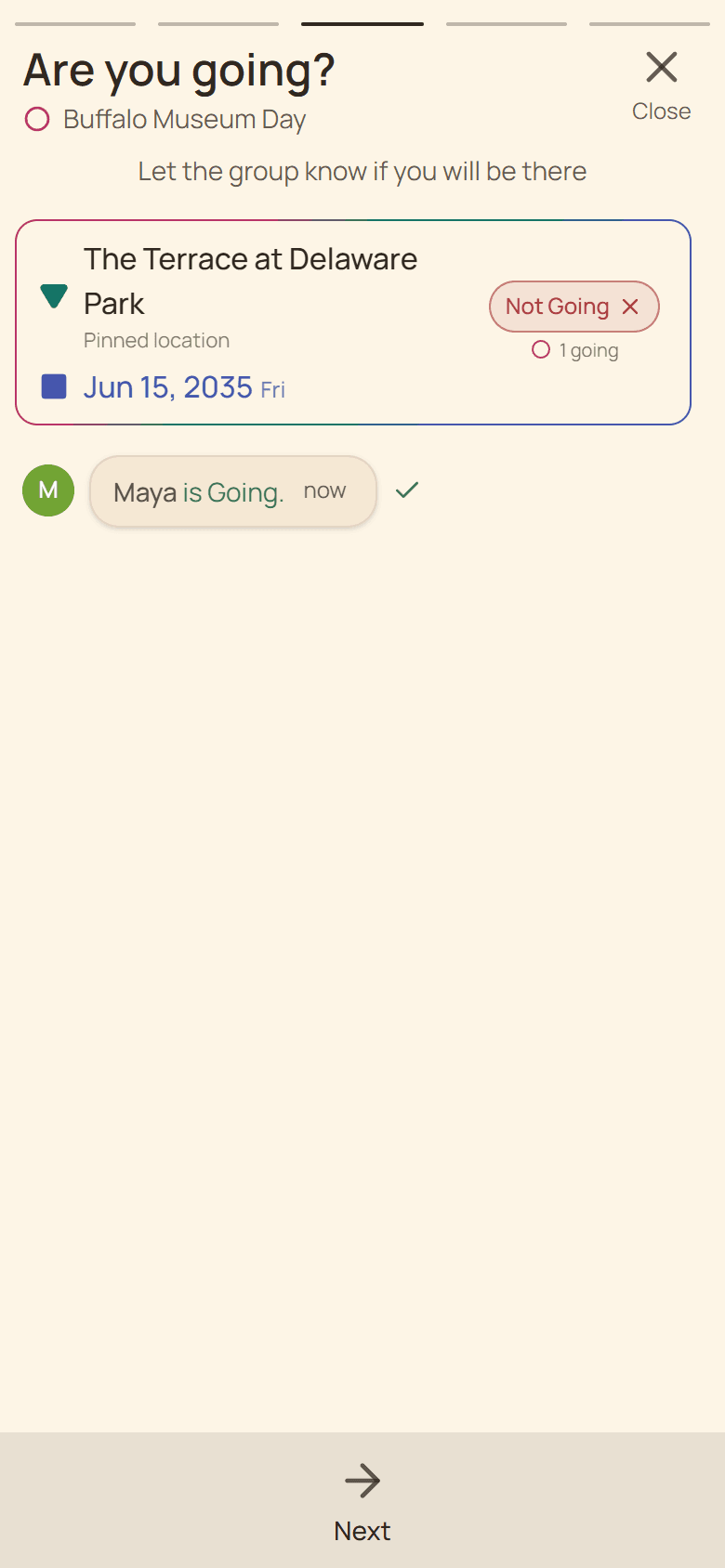
Current Huddl example: use not going when needed. Fictional people and planning details are shown. Step 04
Change the saved response
Use Change RSVP on the same plan and confirm the final member grouping after saving.
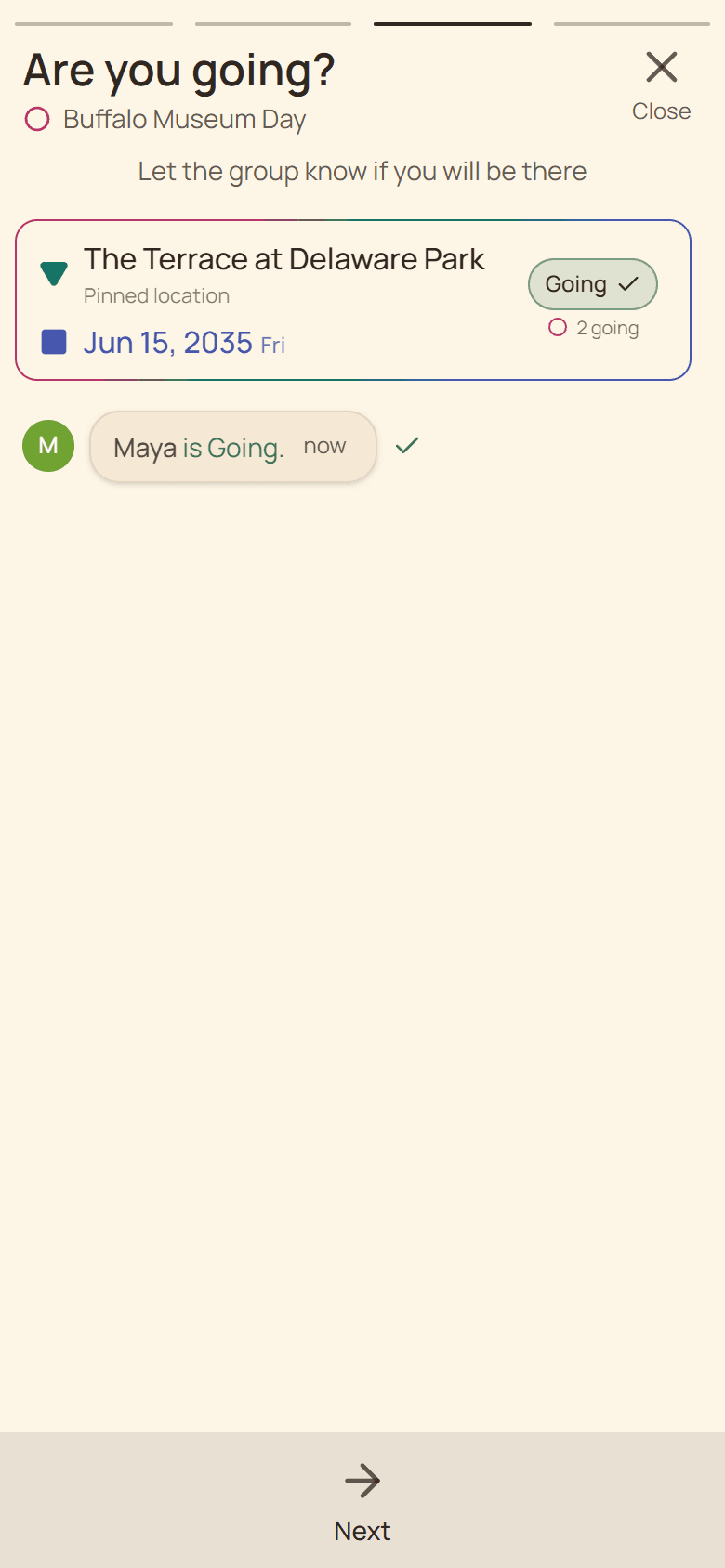
Current Huddl example: change the saved response. Fictional people and planning details are shown.
These screens use controlled fictional participants and current product behavior. Huddl does not verify bookings, venue inventory, travel conditions, or private constraints. Read the editorial standards for the evidence and correction process.