Guides
How to troubleshoot Huddl notifications
Check notification preferences, browser or device permissions, and the current activity without treating a push alert as guaranteed delivery.
Reviewed 2026-10-14 against Huddl 0.9.29. Updated 2026-10-14.
On this page
Separate a saved update from its alert
The current plan and Updates sequence are the first place to check what happened. A push alert is a delivery channel, not a read receipt or a guarantee that an attendance answer was saved. If a change affects immediate travel, contact the affected person directly while you resolve notification settings.
Start in the same profile and installation where you expected the alert. A permission granted in one browser or device does not establish that another installation is registered or allowed. Keep this distinction in mind after moving between the web and native app.
Check the settings before requesting another alert

A reminder setting and a device permission answer different questions. An enabled-looking preference does not grant browser or OS permission, and OS permission alone does not select the desired Huddl frequency.
- Open Profile in Huddl and inspect notification frequency. The choices include Instant, Every 5 minutes, Every 30 minutes, Daily, and Never.
- Check any gathering-specific notification override against the profile default. A less frequent setting can explain why activity is not delivered immediately.
- Read the visible permission or enablement state. Use the offered enable or settings action for your current platform rather than repeatedly refreshing the page.
- Wait for saving to finish after a preference change. If a save fails, use the retained recovery action and reopen the setting to verify the saved choice.
Find the layer that explains the missing notification
Not every activity must produce a separate alert. Huddl’s eligibility and your reading history matter, and delivery can be delayed or suppressed by the device. Do not create repeated artificial activity or ask someone to toggle an RSVP repeatedly just to trigger a notification.
| Layer | Question | Useful action |
|---|---|---|
| Current activity | Was there an eligible update for this member? | Open the huddl and read its current Updates |
| Product preference | Is frequency Never, delayed, or overridden? | Check Profile and the gathering’s applicable setting |
| Browser or OS | Is notification permission blocked? | Review site/app notification settings |
| Installation and registration | Is this installation actually enabled? | Use the current enablement action and inspect its result |
| Device delivery | Could connectivity or a device setting delay an alert? | Check the device and use direct contact for urgent coordination |
Use the current platform’s permission controls
Chrome documents checking Privacy and security → Site Settings → Notifications, or the site-information control for a particular website. It may remove an unused site’s permission and does not deliver notifications in private browsing. In a native app, inspect the OS notification setting for Huddl through the offered settings action when available.
On iPhone or iPad, the installed native app and a Home Screen web app are different contexts. Follow the supported installation and permission flow for the one you use. Device controls can change between versions; use official instructions rather than grant unrelated permissions.
Escalate a delivery problem with safe evidence
If the setting is saved and permission appears allowed but expected alerts still do not arrive, record the platform, browser/app version, setting, approximate activity time, and whether the update appeared in Huddl. Explain whether the device was online and which installation you checked.
Send that information through Contact. Do not include push tokens, private invitations, calendar bearer links, credentials, or sensitive conversation content. Continue using Updates and direct contact for urgent decisions while support investigates.
Work through a fictional example
A fictional member expects an immediate alert but has selected Every 30 minutes and has unread activity in Huddl.
Put it into practice
Communities
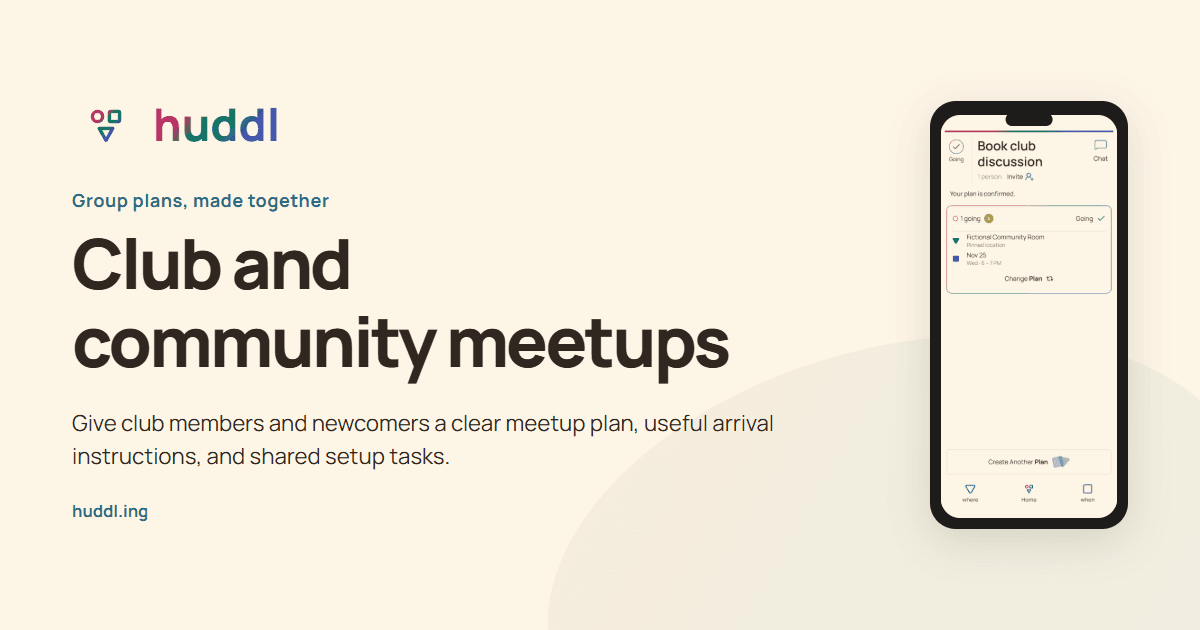
Club and community meetups
Give club members and newcomers a clear meetup plan, useful arrival instructions, and shared setup tasks.
Read the workflow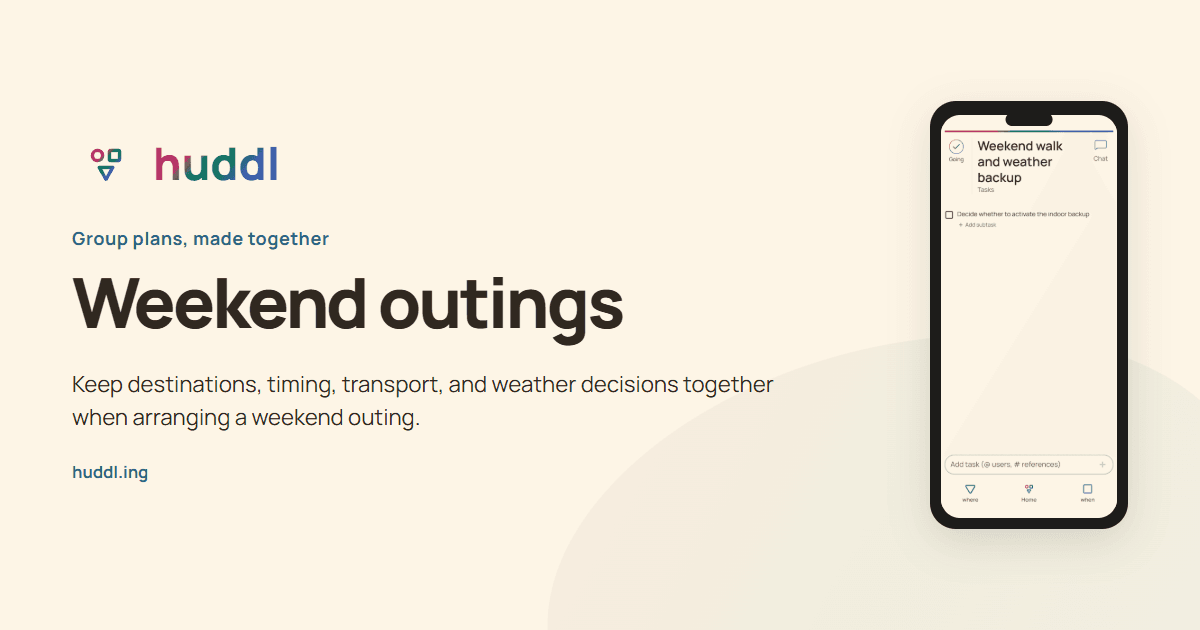
Friends and families
Weekend outings
Keep destinations, timing, transport, and weather decisions together when arranging a weekend outing.
Read the workflow