Guides
How do I see what changed?
Use Huddl Updates to review new members, preferences, likes, chats, plans, RSVPs, and task activity in order.
On this page
See this in Huddl
Follow the guide with these controlled fictional examples from the current application.
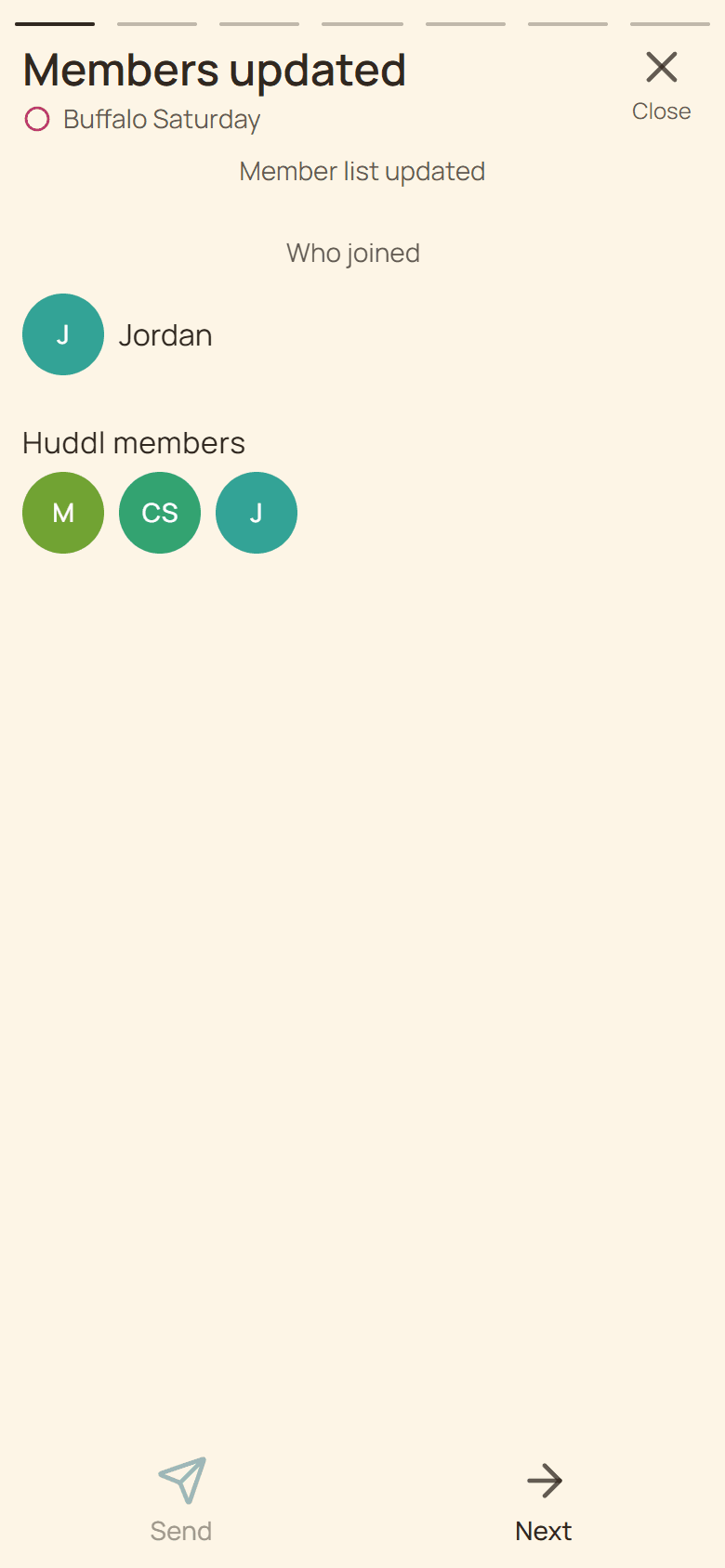
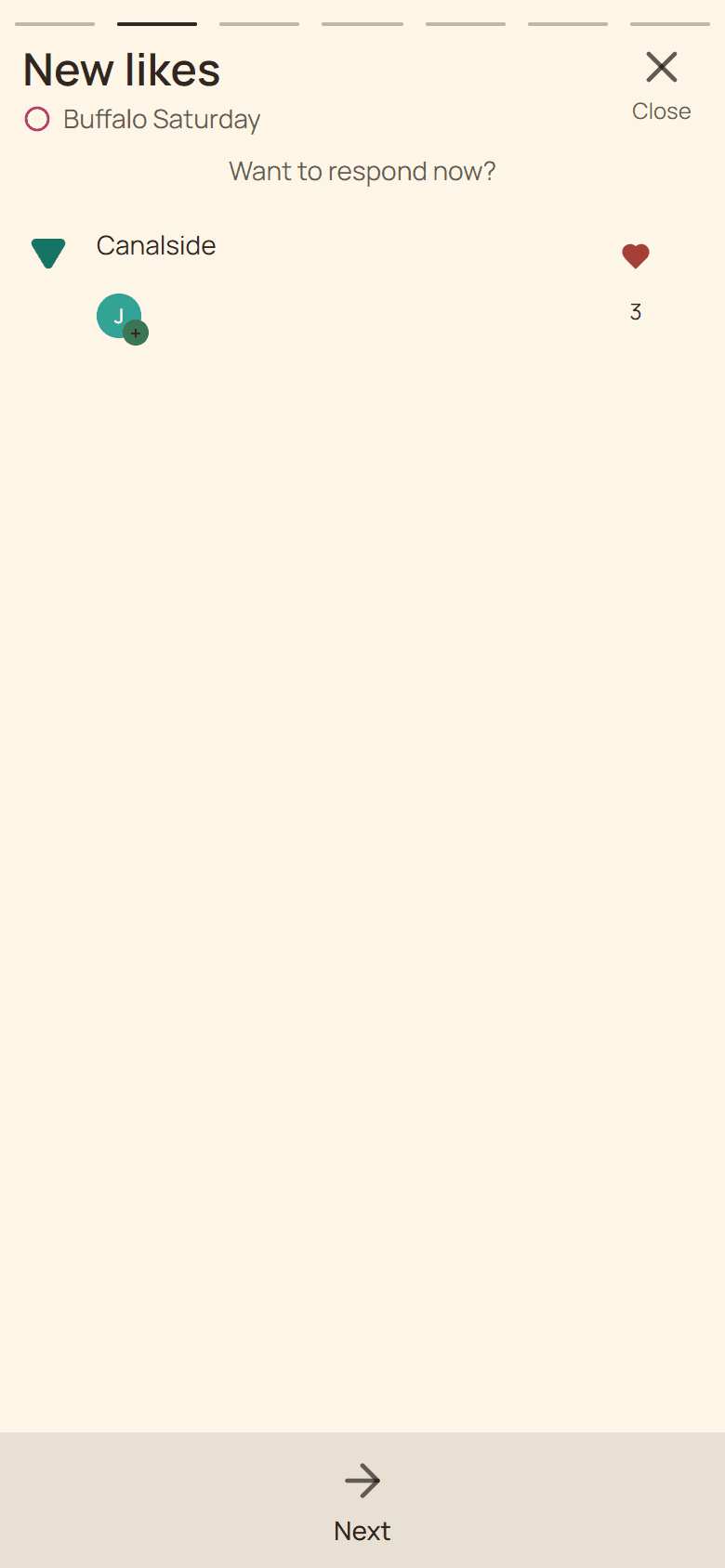
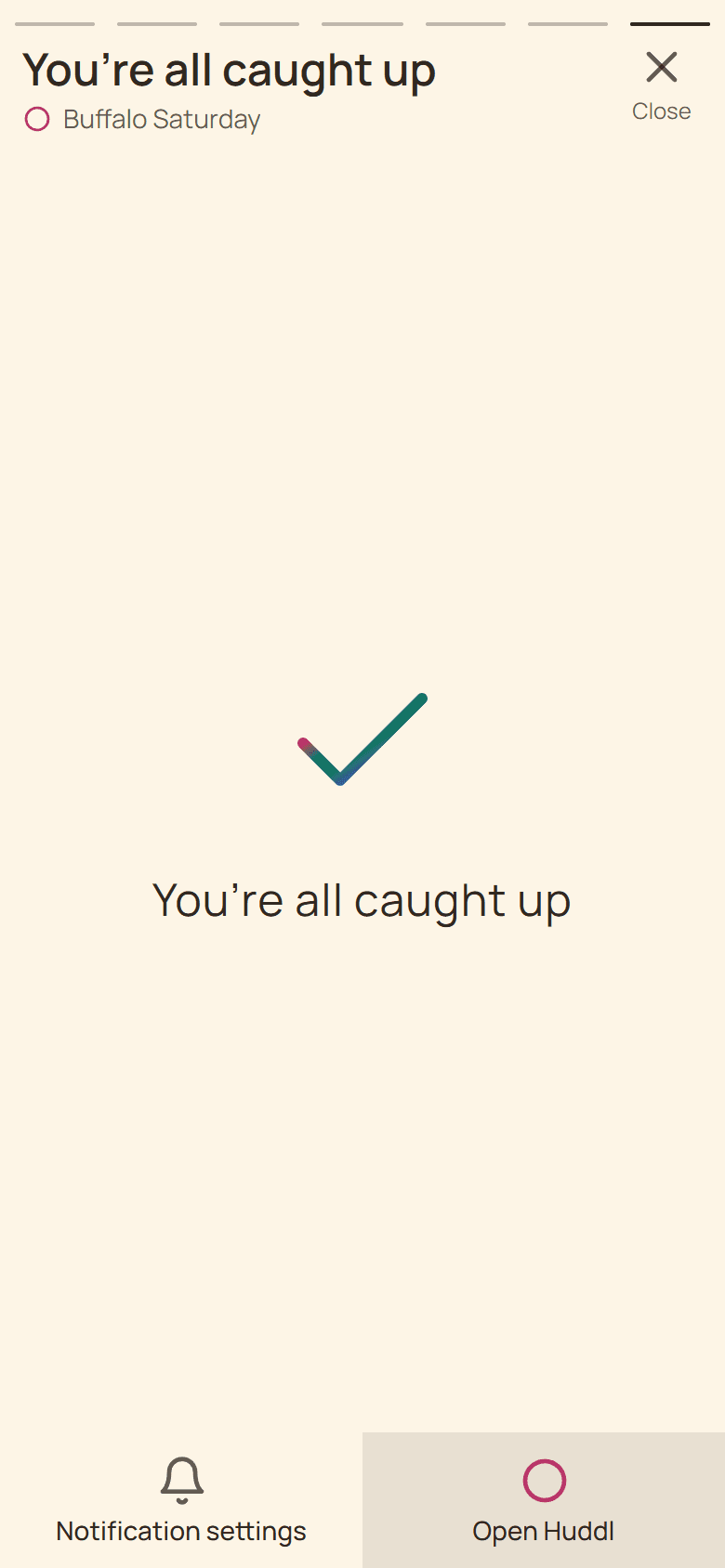
Open the unread huddl
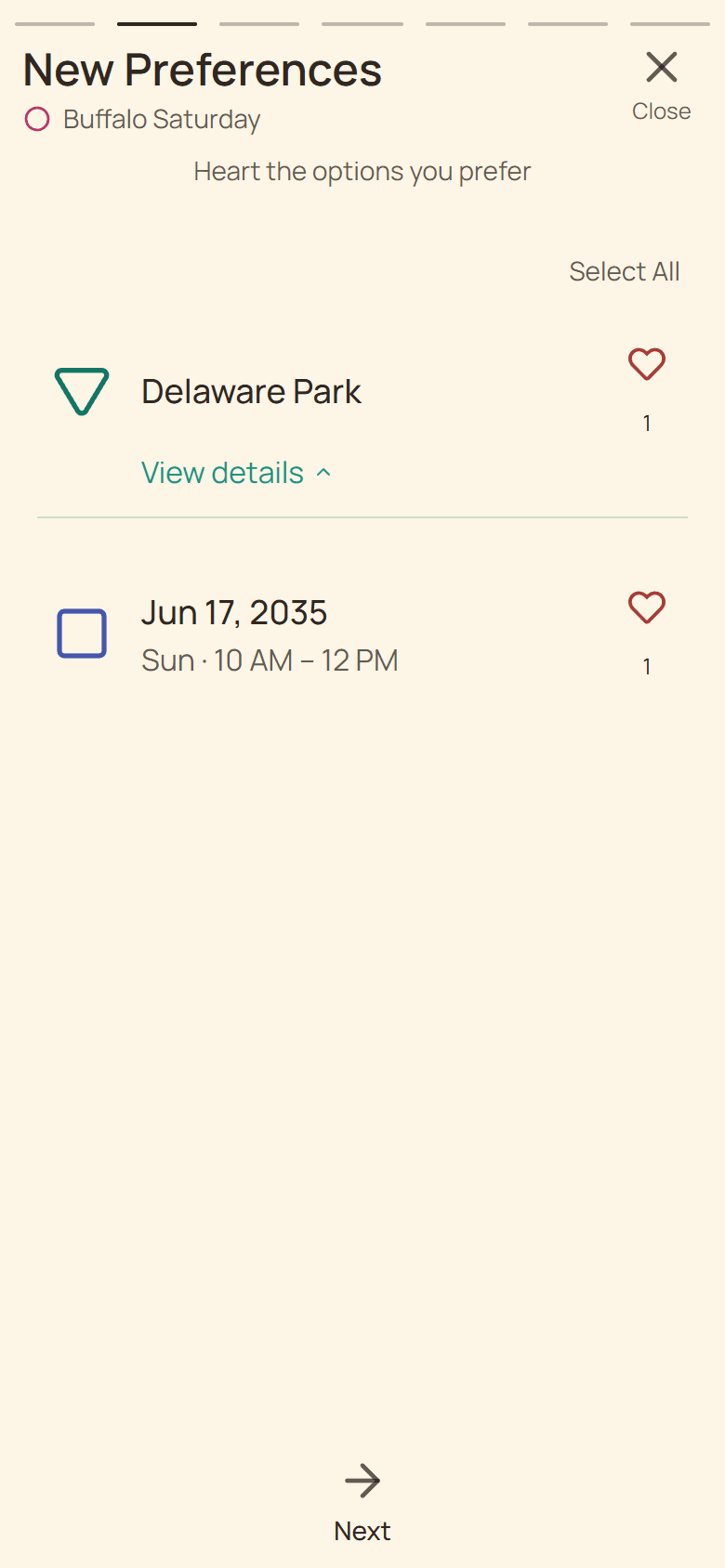
Home marks a huddl when another participant has relevant unread activity. Opening it starts Updates, which presents eligible changes as a sequence instead of dropping you into the middle of a workspace.
Cards may cover member changes, new options, net likes, chat messages, unanswered plans, RSVP activity, or tasks. Only activity applicable to your current membership and reading history is included.
Respond while the context is visible
- Read the card heading and identify the person, option, or plan involved.
- Use the card action when you want to answer immediately.
- Choose Next after the loaded information has been reviewed.
- Open the static Huddl page from the caught-up card for the current summary.
More activity can arrive during playback
Huddl does not replace the card you are already reading when another event arrives. At the end, More Updates opens a fresh sequence for the new revision without pretending you already saw it.
An update card is a catch-up aid, not proof that a push notification was delivered. Use direct contact for urgent travel or safety changes.
Put it into practice
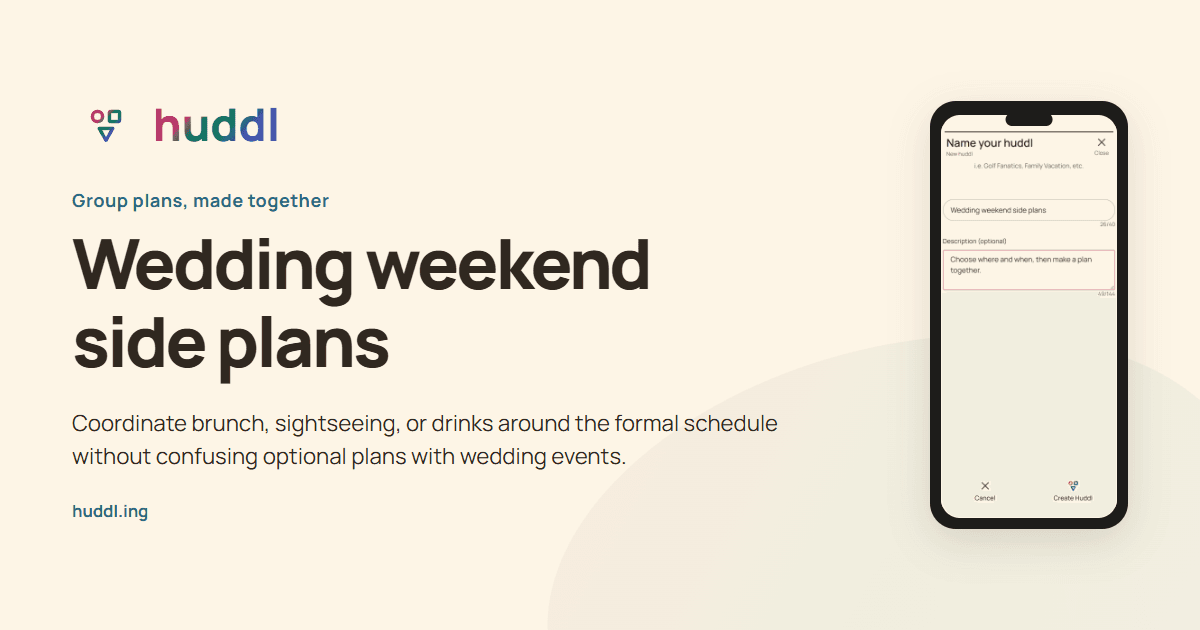
Wedding guests arranging optional meetups
Wedding weekend side plans
Coordinate brunch, sightseeing, or drinks around the formal schedule without confusing optional plans with wedding events.
Read the workflow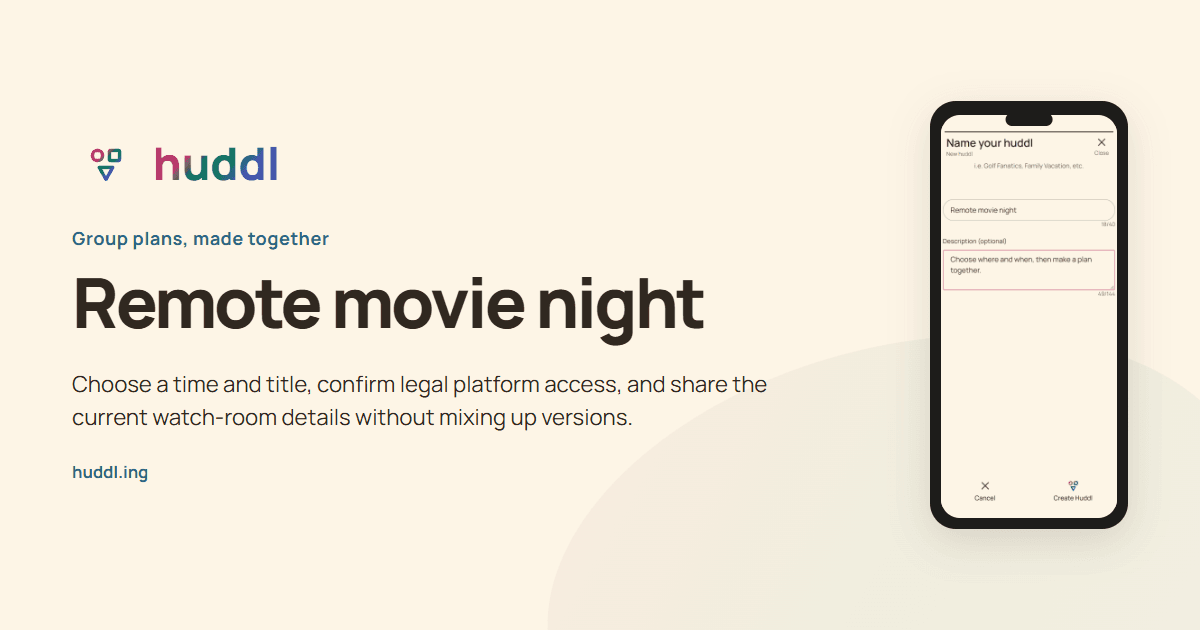
Friends watching from different homes
Remote movie night
Choose a time and title, confirm legal platform access, and share the current watch-room details without mixing up versions.
Read the workflow