Guides
How do I add my availability?
Show which user-proposed places and dates work for you and confirm that your response was saved.
On this page
See this in Huddl
Follow the guide with these controlled fictional examples from the current application.
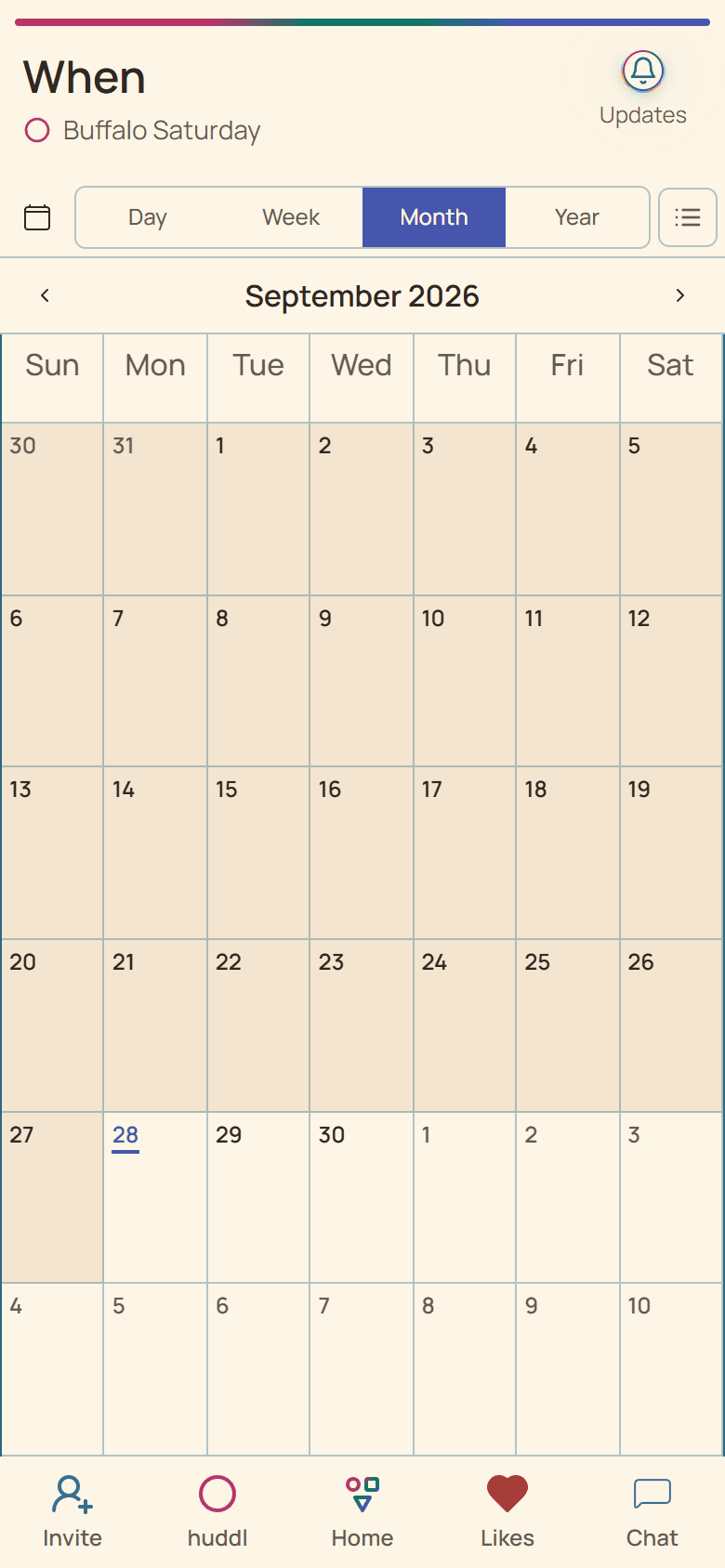
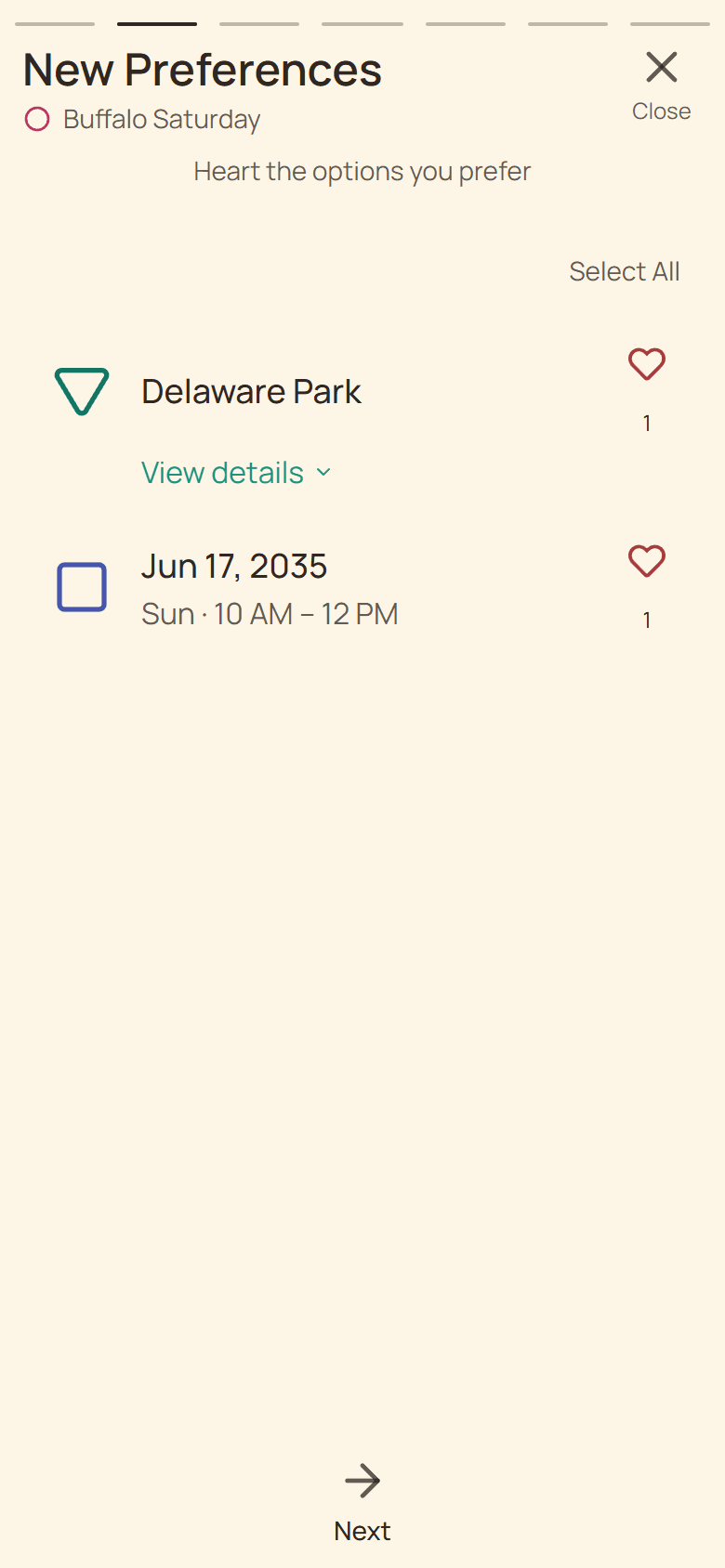
Open New Preferences or When
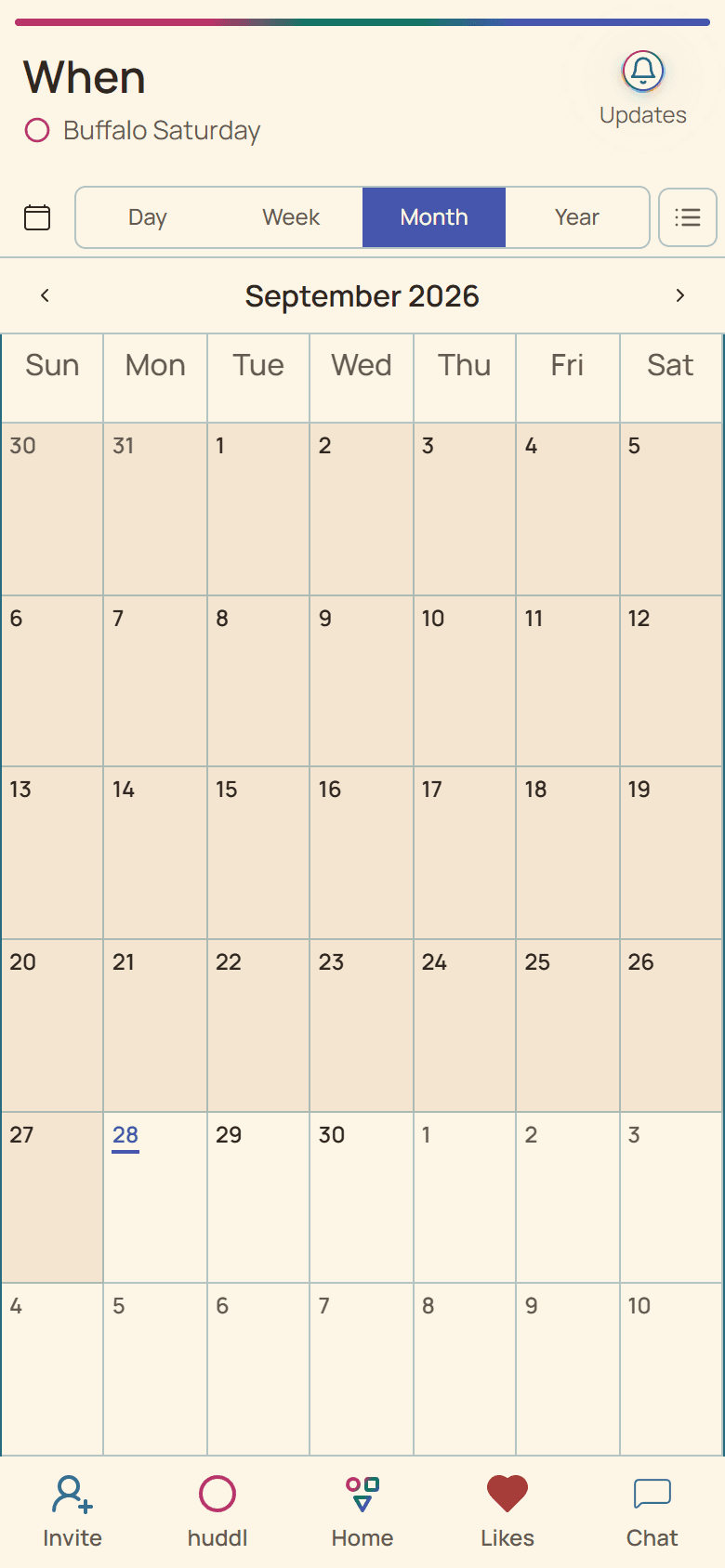
When another member proposes places or dates, Huddl shows those exact options together in Updates. Choose the hearts for every option that works for you.
You can also open When from the huddl footer. A heart records positive availability for that option; it does not RSVP you to a concrete place-and-time plan.
Answer only for the time you can use
- Check the displayed date and your local time zone.
- Select each workable option rather than the one you merely prefer most.
- Review each submitted date or time directly, including multiple times on the same day.
- Choose Next and wait for the global saving indicator to finish.
Check the result before relying on it
Reopen Likes or When to confirm the heart remains. If the save bar ends in an error toast, use Retry and verify the final state instead of assuming the optimistic choice reached the server.
Availability can help the group form a plan, but only a later Going response records attendance for that plan.
Put it into practice
Friends who already know one another
Planning a golf foursome
See how four friends can compare courses and weekend times, confirm attendance, and divide tee-day details.
Read the workflow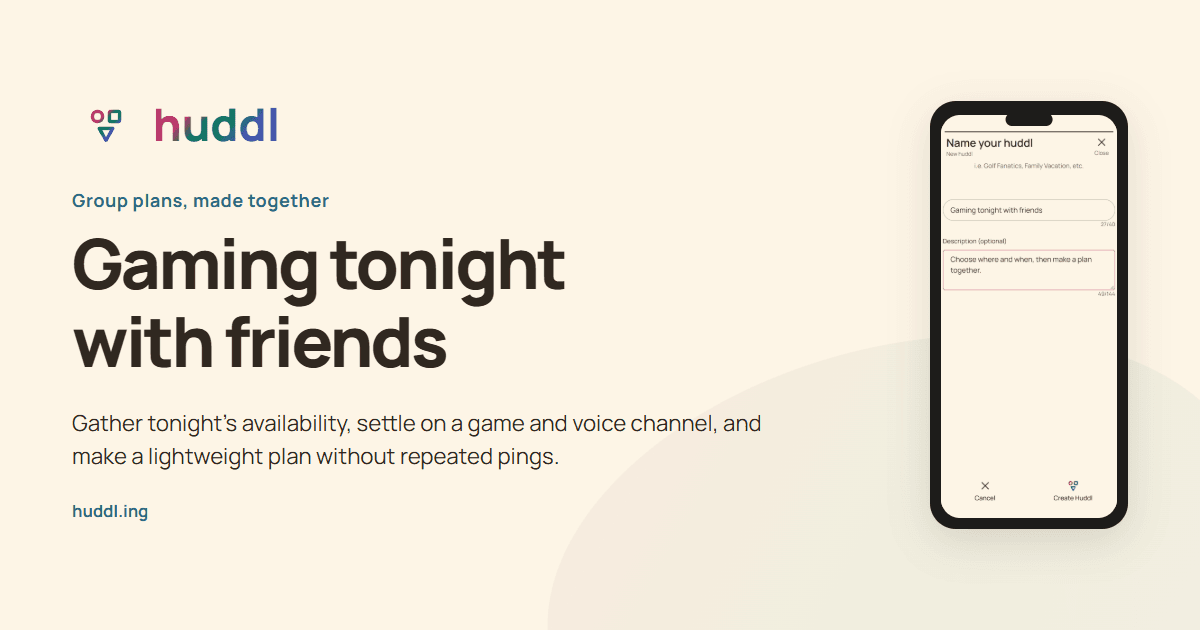
Online friend groups
Gaming tonight with friends
Gather tonight’s availability, settle on a game and voice channel, and make a lightweight plan without repeated pings.
Read the workflow