Guides
How do suggestions become a plan?
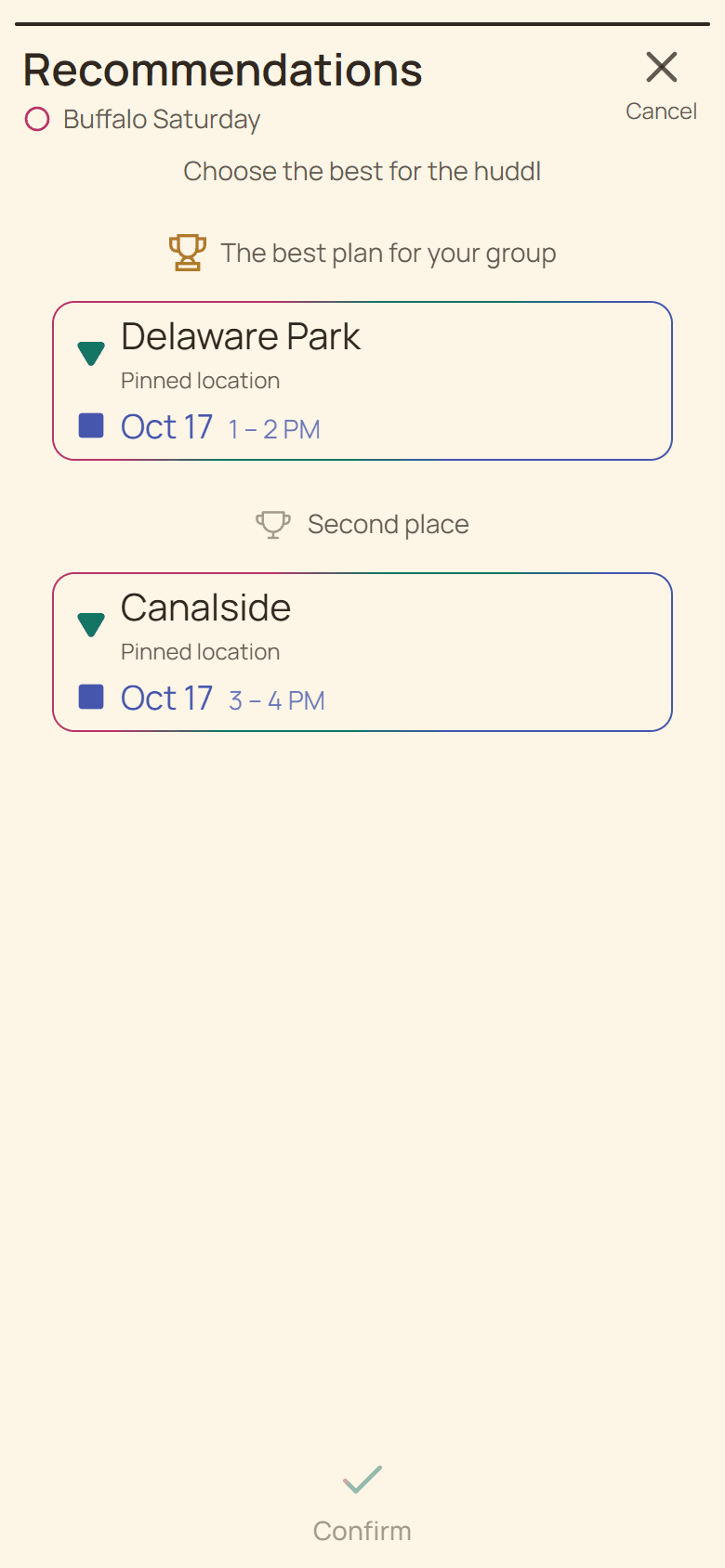
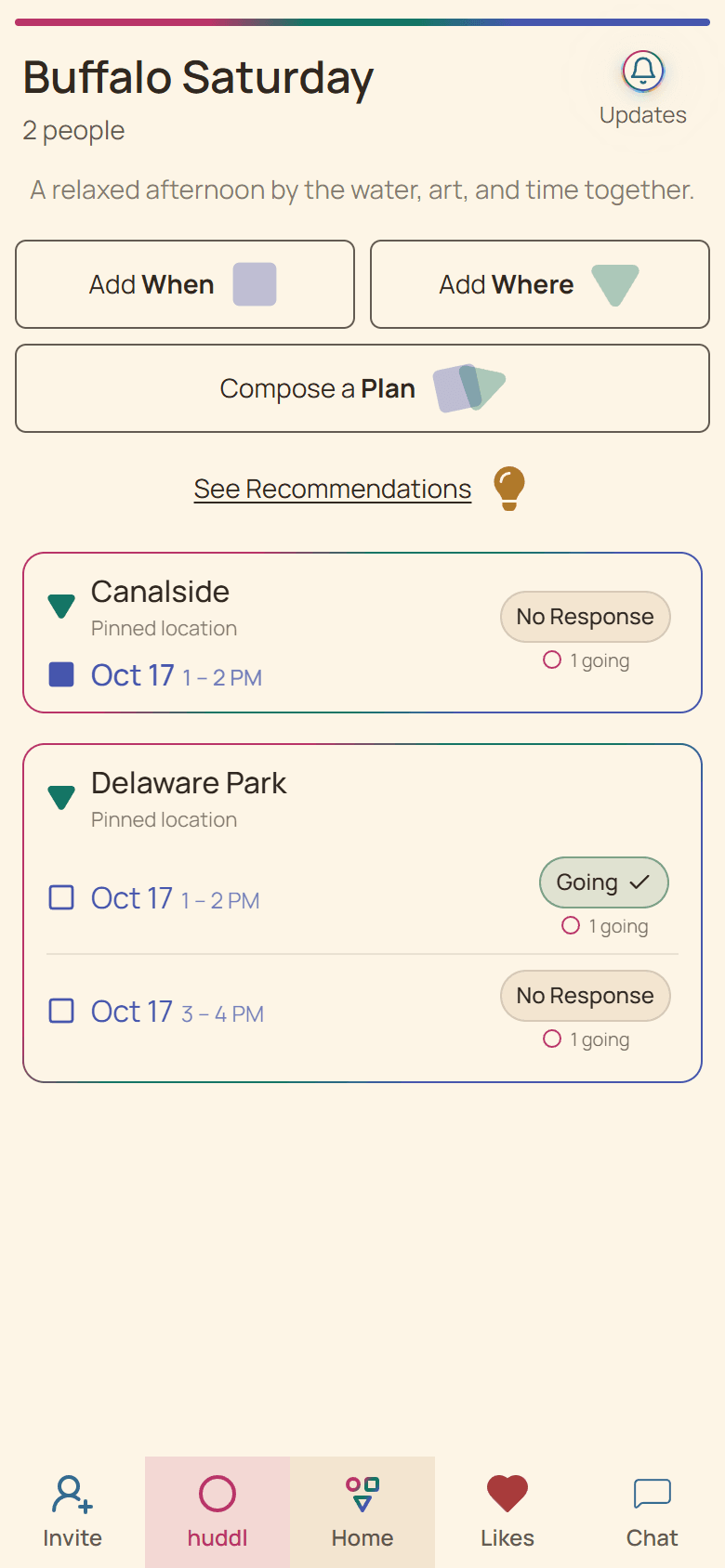
Move from separate Where and When ideas to a reviewed combination that the group can actually RSVP to.
On this page
See this in Huddl
Follow the guide with these controlled fictional examples from the current application.
Save useful options first
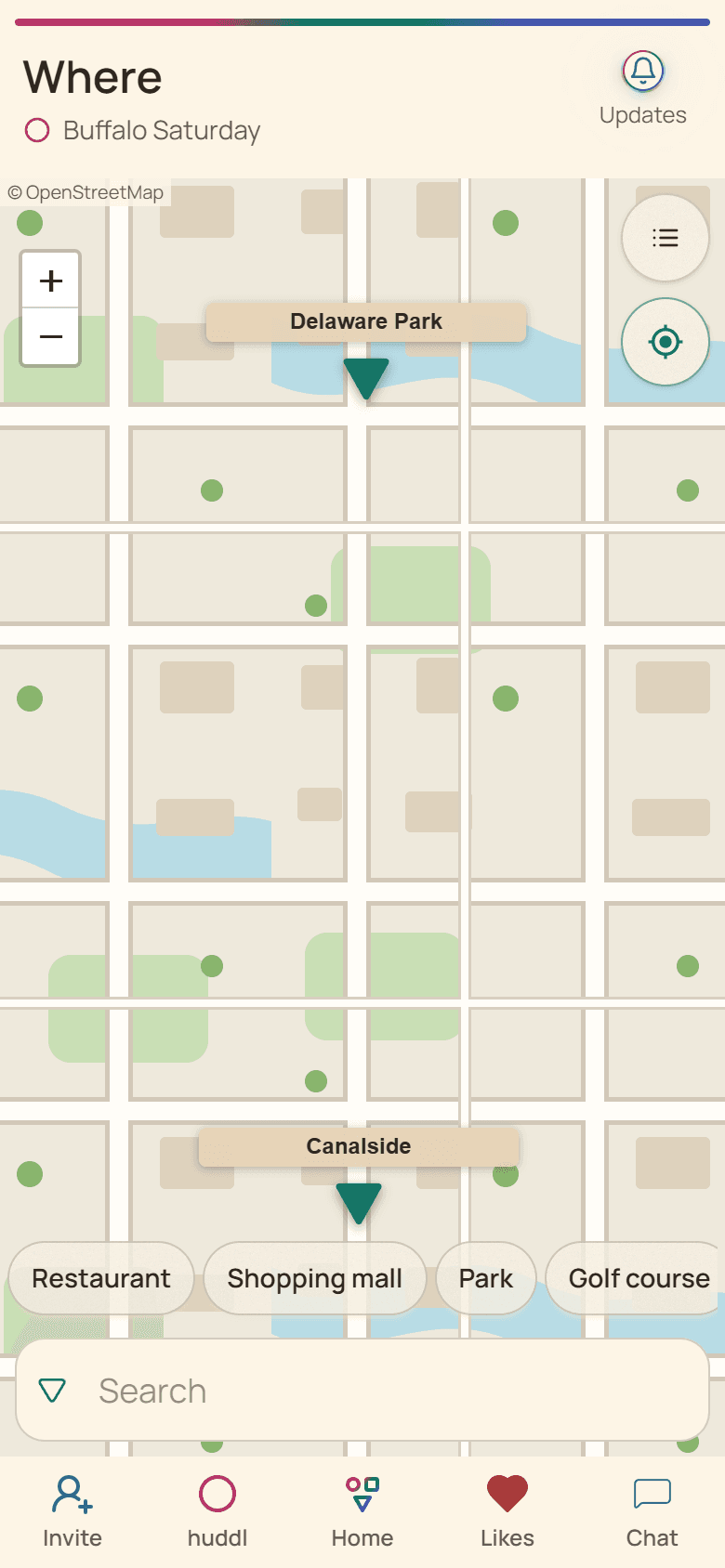
Where and When options can exist without a plan. That lets members react to a location or date before the group decides which pair deserves commitment.
Add only options the group could genuinely use. An attractive venue that is closed at the proposed time produces a misleading combination.
Review a pair before confirming
- Open Add and choose recommendations or the regular Where and When path.
- Select one place and one time that are compatible.
- Inspect both read-only rows on Review.
- Confirm with the intended Suggest or Going decision.
Verify facts outside Huddl
Recommendations rank combinations from Huddl’s saved options; they do not check reservations, venue hours, ticket inventory, price, accessibility, or travel time. Confirm those facts with the responsible provider.
Once a plan exists, ask for RSVPs there and keep booking details connected through chat or tasks.
Put it into practice
Friends planning a short trip
Comparing two trip weekends
Compare two weekends and destination ideas while keeping attendance, travel questions, and next actions connected.
Read the workflow
Friends building a trivia team
Coordinating trivia night
Compare venues whose trivia schedules differ, then confirm a team-sized plan with food and arrival details.
Read the workflow