Guides
Can I change my RSVP?
Switch a saved Going or Not Going response, understand what changes, and make sure the group sees the current answer.
On this page
See this in Huddl
Follow the guide with these controlled fictional examples from the current application.
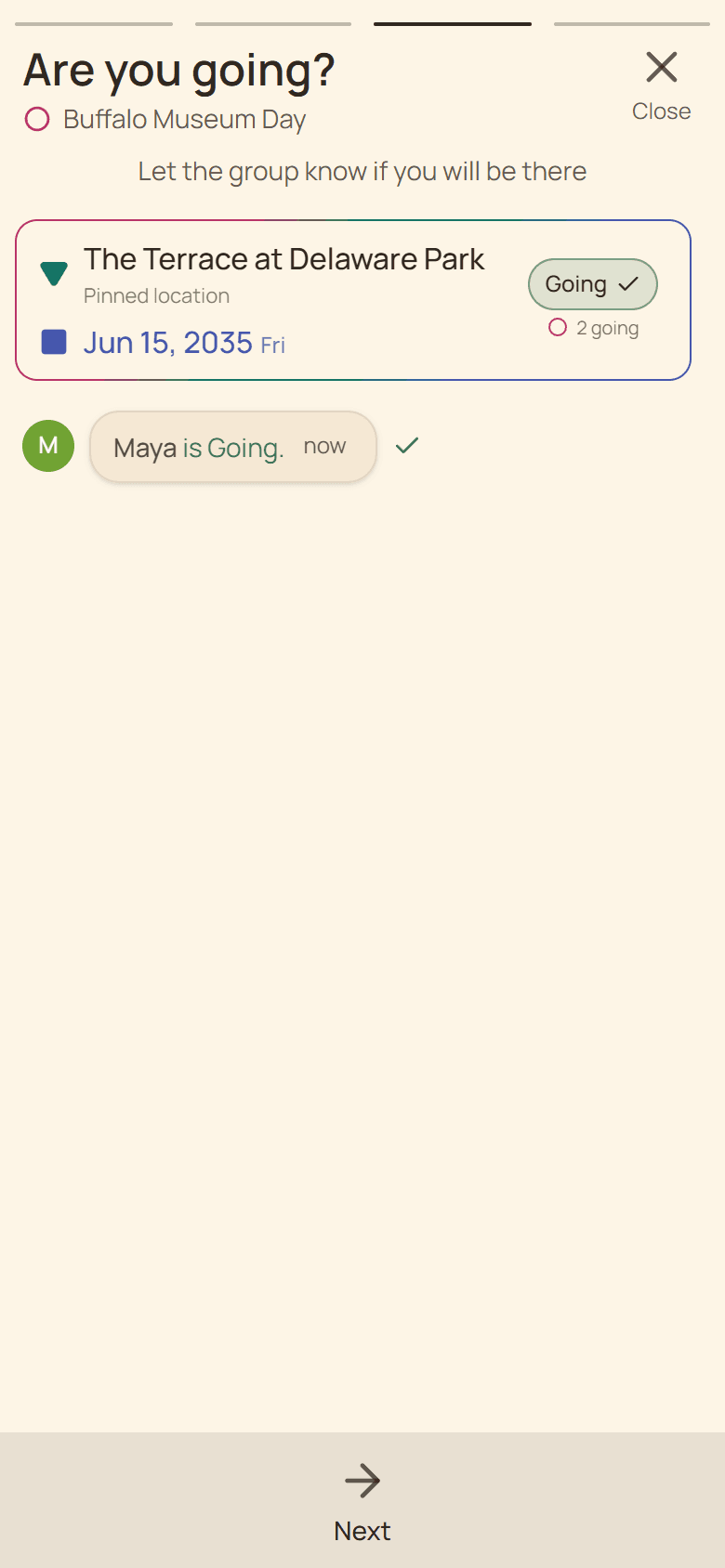
Open the same plan you answered
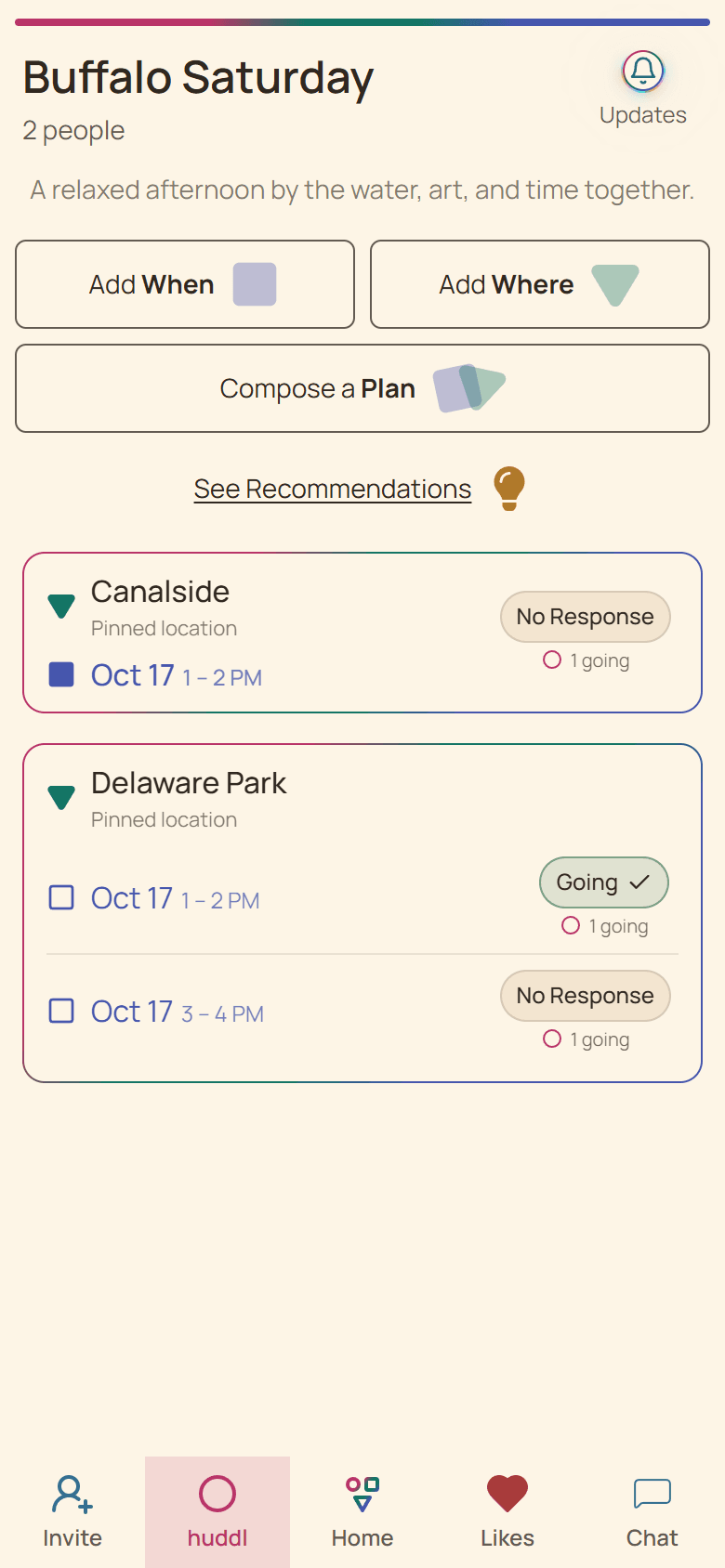
Find the plan on the Huddl overview or in Updates and expand it. Your current status appears with a Change RSVP control so you can switch the response without creating another plan.
Check the place and time carefully when several plan cards look similar. Changing one response does not alter your status on another card.
Make one deliberate change
- Choose Change RSVP on the relevant plan.
- Select the new Going or Not Going state.
- Allow the saving bar to complete.
- Confirm your name appears in the expected attendance group.
Handle a failed change
Huddl updates the interface optimistically, but a visible error means the server may still hold the earlier answer. Use the global Retry action or dismiss the attempted write, then inspect the confirmed status again.
For a same-day cancellation, update Huddl and contact anyone whose travel, booking, or supplies depend on you.
Put it into practice
Concert-going friends
Dinner before a concert
Work backward from a fixed show time to choose dinner, arrival, and transport details that leave a realistic margin.
Read the workflow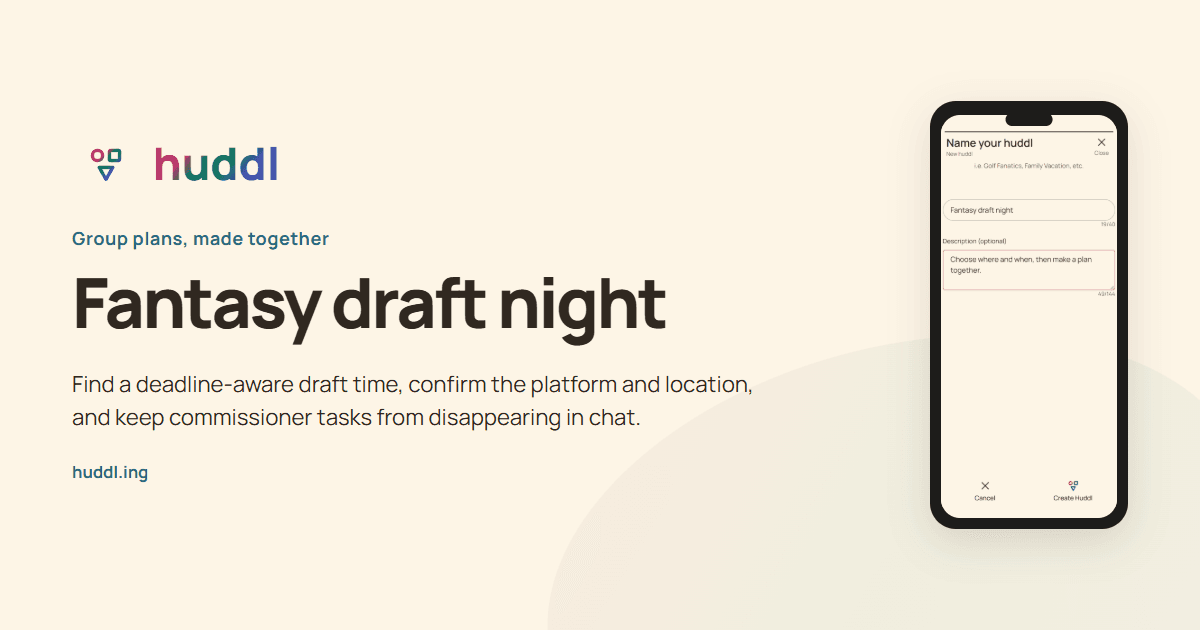
Fantasy league members
Fantasy draft night
Find a deadline-aware draft time, confirm the platform and location, and keep commissioner tasks from disappearing in chat.
Read the workflow